
Chapter 9
| About the Macintosh Chapter 9 |
System tips
The Macintosh System and Finder are already pretty simple to use, but there are certain little tips and wrinkles that can make it easier still Here's a selection:
How much hard disk space is there?
If you want to make your windows that little bit smaller and cleaner, switch off the Show disk info in header option in the Views control panel. This does mean you don't know how much hard disk space is available, though... but switching to icon view tells you straight away.
How big is that folder in the window?
It's always useful to know how big folders are, but it takes your Mac precious moments to calculate the folder sizes when you open a window, and you can speed it up no end by switching off the Calculate folder sizes option in the Views control panel. After all, if you need to know how big a folder is, you can just select it and hit command-I to call up its Info window.
Keeping stationery
Some applications let you create template files that you can use to create new documents, and which you can't accidentally overwrite. System 7 made this feature redundant with the Stationery pad option in a file's Info dialog (select the file, then hit command-I). Rather neatly, the file's icon is changed to reflect its new stationery status.

Clever aliases

The more you play around with aliases, the more you realise how useful they are. For example, if you're regularly moving between two or more folders, keep an alias of the others in each. And if you like windows so big that they cover up the wastebasket, put an alias of it in the folder!
Aliases and networks
Plodding through the Chooser to log on to another Mac or a server on your network can be a real chore. But once you've set up an alias for the machine or destination folder you regularly use, it's just a double-click away (and a user name/password dialog).
Aliases as catalogs
This one is really smart. If you keep lots of files on external floppies (poor soul) and you have the patience to create an alias of each file for storage in a folder on your hard disk (or another floppy), you can:
1. Enjoy an alphabetical list of all your files.
2. Find out which disk contains any one file by double-clicking on the alias (your Mac will obligingly tell you where the file is).
Finding originals
You've got an alias of a file, but you don't want to load the file, you just want to find it - what do you do? Hold down option when you double-click it!
Unmounting external drives/disks
There's an 'undocumented feature' in System 7 (fixed in 7.5) that stops you ejecting a SyQuest cart or CD-ROM while you've got File Sharing turned on. This happens when you're not even 'sharing' that disk. To get round it, find a copy of the Unmountlt utility.
Recording Finder scripts

System 7.5 owners are lucky in that they have AppleScript and a 'recordable' Finder. Locate the AppleScript Script Editor (probably in the AppleScript folder in your Apple Extras Folder), launch it, press the record button and then go back to the Finder to carry out a sequence of actions. When you've finished, go back to the Script Editor, stop the recording and save the script as an application. For example, you could record a script that opened up half a dozen regularly-used windows and tiled them neatly on your Desktop - and you could put this script in your Startup Items folder if you wanted to be really cool.
Don't accept scripts from strangers!

You can assume that commercial software publishers know what they're doing with AppleScript, but if a bungling workmate offers you a script and says 'run it', don't even think about it until you've examined it with the script editor. Using the script recorder, it's easy to create an application that dumps everything on your hard disk.
Silent running
If you're sick of your Macintosh going 'boing' every time you do something stupid, go to the Sound control panel and drag the volume slider down to zero. Your Mac won't give up - it won't be able to go 'boing' any more, so it will flash the menu bar when you do something daft. How obliging of it.
Change your name, fast

Tired of waiting for folder and file names to highlight when you're trying to highlight them? Try clicking on the file/folder and straight away moving the mouse slightly - the name highlights immediately (or hit the Return key). Once you've changed the name, you don't have to click somewhere else to make the change permanent just hit the Enter or Return key.
Quick copying
Making copies of files or folders in new locations is a bit of a pain. First you have to duplicate the file/folder (command-D) and then drag it to its new location and maybe take the words 'copy of' out of its name. There's a dramatically quicker way. Simply hold down the option key while you drag the item to its new location. Hey presto -identical files, and even with the same name.
Synchronising folders
If you keep one Mac at home and another at the office, and you keep duplicate 'work' folders, you're going to want to make sure they're both up to date. You can simply replace one folder with another, but this does mean that items in the older folder you've deleted in the new one will be lost. So open up the latest folder and drag its contents into the old one. If the same item exists in both folders, your Mac will ask you whether you want to overwrite the old one with the new, or vice versa - this way you maintain a full set of all the files you've worked on, and the most up-to-date version of each.
Changing your mind
If you've started dragging or copying a file/folder from one location another, and then changed your mind, drag it up to the menu bar, and your Mac will pretend the whole thing had never happened.
Ordered icons
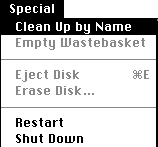
Using icon views for your folders makes your Desktop look pretty, but it's frustrating that they don't sort themselves out alphabetically - they just stay where you plonk them. Ah, but if you hold down the option key when you go to the Special menu, the Clean up Window option has changed to Clean up by Kind (or whichever was the last list view you used)...
Selecting multiple icons
To select more than one icon (for dragging or deleting lots of files/folders at once), select the first normally and then hold down the shift key while you select the rest. Or, if there are only a couple of items you don't want to select, do a Select All (command-A) first and then shift-click on the ones you don't want.
Closing all the windows
To close all open folder windows at once, hold down the option key while you click on the close box of any single window.
Moving windows
You can move a window that isn't active without making it active. Simply hold down the command key as you drag it.
Keeping it tidy
If you want a folder that's buried about ten layers deep in your hard drive, you can either put up with having nine folder windows stacked up behind the one you finally want, or hold down the option key as you double-click the successive folders. This closes the parent folder as soon as the new folder is open.
Tracing your parents

You've been super-efficient. You've only got one folder window open on your Desktop. But now you need one of the folders further up in that window's hierarchy - what do you do that won't mean about thirty-seconds' - worth of window opening and closing? Hold down the command key and click on the title to get a pop-up menu of all the parent folders and simply select the one you want.
A different view
It's nice that you can view folder contents alphabetically, or by size, or by date, kind or label. It's even nicer that you don't have to haul the mouse pointer up to the View menu to do it. Providing you are not currently viewing by icon (and that the folder window is wide enough) you can simply click on one of the categories in the header bar to choose that view.
Rapid expansion
In list views you can examine the contents of folders as an outline. We know that clicking on a right-facing arrow turns it downwards and displays, indented, a list of all the folder's contents. What we may not know is that by holding down the option key while clicking on the arrow expands all the various sub-levels of folders too. We also may not know that we can select all of the folders in our folder window (command-A) and hit command-option-right arrow to do the same trick with all of them at once.
Get me out of this!
If your Mac has got stuck in a rut carrying out a task, or you're just fed up of waiting - and there isn't a Cancel button in sight - hit command-. (fall stop) or even the ESC key.
Instant wipe-out...

well, nearly instant. If you want to erase a floppy disk, hold down command-option-Tab while you insert it (it helps if you have recently broken all your fingers in a freak accident) and you go straight to the Do-you-want-to-erase-this-disk dialog. Well, it could save you three or four seconds maybe...
Get that floppy out!
To eject a disk without having to haul it down to the wastebasket, select it and then hit command-E. Use command-Y to avoid leaving a ghost image of the disk. If you hit shift-command-1, the disk doesn't even need to be selected (but you are left with a ghost image).
Get lost!
Locked files are a pain because when you try to empty them from the wastebasket they won't go. Hold down the option key while you select Empty Wastebasket, though, and your problem's solved.
Getting back to normal
If you've hopelessly mucked up your control panels, you can get everything back to the defaults by holding down command-option-P-R while you start your Mac up.
Make it snappy
Using the Views control panel you can make files and folders snap to an invisible grid as you move them. It keeps things neat, but it can leave icons a little widely-spaced. And it's a bit of a nuisance to haul yourself over to the control panels to change the setting. Anyway, you might like to know that by holding down the command key as you drag you reverse the current settings until you release the mouse button again.
Hiding other applications
If you only want the current application to be visible (i.e. no other windows lurking behind it), you can choose Hide Others from the applications menu - but it happens automatically if you hold down the option key while you select your application.
Use Extension Manager!

Or use some other Extensions/control panels-handling application. For each job you do on your Mac, many of its control panels, Extensions and fonts are redundant. If you create sets of Extensions needed for specific tasks and disable the rest, you can save a lot of RAM (it's not hard to save 1Mb or more). It does mean restarting your Mac every time you swap Extension sets, but overall you can save yourself a lot of time which would otherwise be spent twiddling your thumbs, waiting for your Macintosh.
Upgrade or die

If you don't have System 7.5, get it now! It's true that it takes up a fair bit of hard disk space, but in this day and age most of us aren't struggling too much to find room on our hard drives. And it's a myth that it gobbles up RAM - unless you install bloated options like QuickDraw GX and PowerTalk, it doesn't use up significantly more RAM than 7.0 or 7.1. So do it now! System 7.5 incorporates heaps of fixes and features that people were screaming for in earlier versions (and which software companies were charging you good money to provide).
Quick file access

If you have System 7.5, move a folder alias into the Apple menu, make sure Submenus is switched on in the Apple Menu Options control panel and luxuriate in the hierarchical sub-menus that appear in the Apple menu you can dig out files and folders buried up to five levels deep without having to let go of the mouse button. If you select a folder, you go back to the Desktop so that the folder window can open; if you select a file, it's the same as double-clicking on it.
Get tooled up
If you have a CD-ROM drive, buy a copy of The Little Mac Toolkit (Publishers: Peachpit Press, Author: Clay Andres, ISBN:1-56609-042-3 This 550-page book comes with a CD-ROM containing hundreds of top PD/shareware utilities for everything from converting weird file formats to providing hierarchical popup folder menus anywhere onscreen (it's true). As well as telling you how to use each and every program, the book also gives some real insight into how your Mac and its operating system work.
 G.Mills@compserv.gla.ac.uk