
Chapter 4
| About the Macintosh Chapter 4 |
Once you've mastered the basics of using a Macintosh, you can start experimenting with the different ways in which you can adapt it to suit your needs and preferences.
Window views
One of the first things you can do is change the way items are displayed within a folder. Usually, new Macintoshes are set up to display items as icons. This is an easy-to-understand method that lets you quickly tell folders from files, and one type of file from another.

There are other ways of looking at the contents of windows, though. Click on the window you want to modify to activate it, and then click on the View menu to see a whole list of options. You'll notice that currently the by Icon option has a tick next to it (see below) - that means it's the option currently selected. Try choosing the by Small Icon option instead:

Predictably enough, this has made the icons much smaller. they are a little harder to see, but you can see more in the window, meaning you either have to use the scroll bars less to see everything or you don't need to enlarge the window quite as much,
Here's a quick tip. If your window isn't large enough to show you all the contents, click on the box at the far right-hand side of the little bar - this will enlarge the window to the right size automatically (assuming your screen is big enough).

What about the by Name option - what does this do? This is the third way of looking at the contents of windows (all the remaining options are variations on this one), and it's arguably the most useful. As you can see, folders and files don't have icons any more - they are simply displayed as a list. But this list can give you lots of useful information, like whether items are folders or files and, if they are files, the name of the application that created them. You can also find out how big your files are, and when you last made any changes to them. (The window illustrated below doesn't have any files in it, only folders, so some of this information is left blank.)

In this view, files and folders are listed alphabetically, but the remaining options on the View menu can change this order so that you display items in order of the largest, or the most recently modified or by the applications that created them (useful for sorting out and separating your documents). You can also view them by label - we'll look at labels later.
As well as the list of folder and file names, you'll notice right-pointing arrows at the start of each folder name (only folders, not files). These are very clever. You store things on your hard disk by creating folders within folders in a kind of nested structure according to your own organisational system. Normally, you might find a file by opening your hard disk window, then double-clicking on a folder within it, then another within that ... until you work-down to the file you want. The View by Name option gives you another method. If you click on one of these right-facing arrows, it turns downwards, at the same time revealing, offset to the right, a list of all contents of that folder.

This is another way of navigating through the layers of folders on your hard disk. You'll see in the above illustration that the AppleScript Utilities folder contains both files and folders. The files have their sizes quoted, and the folders have right-facing arrows - you can click on these arrows to find out what these folders contain. And so on, down to the file or files you are looking for.

This is called an outline view, and you may come across it in word processing documents. It's a way of organising things in an easy-to-understand hierarchy. Simply click on a downward-facing arrow to close up the outline again. With a little experimenting you'll quickly grasp how it works.
Note that the changes you make with the View menu apply only to the current window. And you can still find files by successively double-clicking on windows to open them, or you can set up your hard disk window in View by Name mode and use the outline arrows to find the things you want without ever having to open another window. Or you can use a combination of both methods. That's the beauty of the Macintosh - there is always more than one way of doing something, you can choose the method which suits you best.
What's a label?
Labels are a rather under-used part of the Mac Operating System. They are not useful to everyone, and most Macintosh users don't understand them too well. But you may find them a godsend.

Click once on a file or folder to select it. Then choose a label from the Label menu. If your window is set to either of the icon views you won't see any change in your file/folder. But if you switch to View by Name, you'll see that file/folder now has the label you chose. (If you can't see the Label column, increase the width of the window.)
Now, if you choose the View by Label option for that window, your files/folders will be sorted out according to the labels you've given them.
You're not stuck with the labels currently on the menu, either. You can change these via one of your Macintosh's Control Panels, and we'll be looking at these in the next chapter.
Finding your files
It's easy to create complex filing systems on your Macintosh - and as a result it can be easy to forget where you left certain files. Thankfully, there's a quick way of finding any file. From the Desktop, choose Find... from the file menu. You'll then see this dialog.

There are various options here for changing the way your Mac searches for files, but for now, we don't need to change any of them. Simply type the name of the file you're looking for (or even part of the name) in the box just above the Find button, then click on the Find button. After a few seconds, your Macintosh will have found all of the matching files, and will display them in the following window:

This shows you two things. It shows you the names of the matching files and folders in the top part, and if you click on any one of them to highlight it, the bottom part shows you where you can find it (in other words, the route through the various nested folders).
Note that you only see these dialogs if you have a newer machine with System 7.5. Older versions of the System have a less sophisticated Find... dialog which gives you fewer options. This older dialog only shows you the first matching file your Mac finds - to find any others you have to use the Find Again option on the File menu.
For more information ...
There are other interesting options on the File menu. One of these is Get Info. If you highlight a file or folder and then select Get Info, you'll see a window like this one.
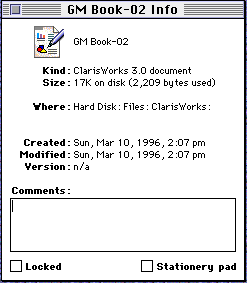
This window tells you a lot more about the item you selected. At the top is its name, and below that you'll see what kind of item it is (this one is a ClarisWorks 3 document). Below that is the size of the document, where it's stored, when it was first created, when it was last modified, its version number (not applicable to documents like this one) and - below that - a box where you can type messages to colleagues (or yourself) or any other information about the document you like. Right at the bottom of the window are two check-boxes. Click on the box on the left and you lock the file. This makes it impossible to delete or modify it until you open this window again and un-check the box. The one on the right turns the document into an item of stationary - it becomes a template for other documents, so that you can open it and make changes to it, but you must save it as something different - the original template document is left intact.
Creating short-cuts with aliases
The Apple menu
The Apple menu is where you'll find the Mac's Calculator, Notepad, Scrapbook and other built-in utilities. But you can also add your own items to it - like aliases. To add an alias to the Apple menu, you'll need to first create the alias and then drag it to the Apple Menu Items folder in your System folder. The alias will be on the Apple menu next time you look.
If you have System 7.5, there is a much quicker method. First select the item you want to make the alias of, then choose Automated Tasks from the Apple menu. From the sub-menu that appears alongside, choose Add Alias to Apple Menu. (Don't worry if your Apple menu looks nothing like mine - I've adapted mine for my own needs.)
Your Mac will automatically create the alias and put it in the Apple Menu Items folder. It takes a few seconds, but once the process is finished you'll find the alias in the Apple menu.
Adding things to the Apple menu
Aliases aren't the only things you can add to your Apple menu. The release of System 7.5 has added a very interesting new feature. If you add a folder (preferably, an alias of the folder) to the Apple menu, when you select it from the menu, it displays a sub-menu listing all the contents of that folder. And if that folder contains other folders, an arrow appears along side them. Move the mouse pointer to select those, and their contents appear in turn... in fact you can delve up to five folders deep using this method (although you can nest folders as many layers deep as you like on your Hard Disk).
I keep all my work files in a single folder called (imaginatively) Files! By putting an alias of this folder in my Apple menu I can work through to individual files via the document I'm working on, through live versus finished work and the specific project folders.
Expert tips
The extended Find... dialog you get with System 7.5 is worth exploring. You can specify file sizes, labels, creators, creation dates and other characteristics to perform some pretty sophisticated searches. It might not save you much time on a single Mac, but it could make searching a server a lot, lot faster.
If you like icons but you also like the neatly sorted information in list views, go to the Views Control Panel (see also Chapter 5) and click the largest icon size in the List Views area.

There's another interesting option on the File menu - Make Alias. Again, first select a folder or file, and then choose this option. This creates an alias of the original item (you can tell it's an alias because the name is italicised). You can double-click on this alias to open the document or folder, in the same way that double-clicking on the original would. The difference is that you can leave the original where it is, for the sake of efficient organisation, but put the alias any where you like - on the Desktop, maybe, if you want quick access. Aliases take up very little disk space, and can be really useful short-cuts. If you wanted to, you could create several aliases for a document you used often, and keep them in different places.
There is one very good place to put aliases, and that's the Apple menu. We haven't looked at this properly yet, but it's a very important menu which is visible all the time - not just on the Desktop, but while you're working with other applications too.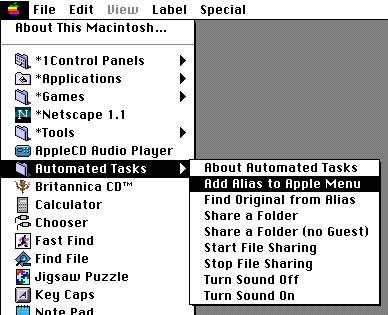

You can drag anything into the Apple Menu Items folder, including both applications and documents. But it's best to use aliases rather than the items themselves, because that leaves you free to organise the originals properly, rather than cramming everything into the Apple Menu Items folder.

You can keep more windows open by using WindowShade (System 7.5). This Control Panel lets you shrink open windows to just their title bar by double-clicking on the title bar (or using any other keyboard/mouse combination you specify in the Control Panel). Simply repeat the operation to expand the window again.
Please send any comments on this document to:
 G.Mills@compserv.gla.ac.uk
(George W. Mills, Computing Service, University of Glasgow)