Chapter 5
| About the Macintosh Chapter 5 |
You use the Macintosh's Control Panels to set your machine up the way you want, and to configure some of the software that comes with your machine. You may not have all of the Control Panels mentioned in this Chapter, depending on the age of your machine, and you may have additional Control Panels to go with software you've installed. At any rate, these are the Control Panels you are most likely to see.
There are three ways to access the Control Panels:
| 1. | Choose Control Panels from the Apple menu (you can do this from within any application, don't forget). If you have System 7.5 you can choose the one you want from the list that appears in the sub-menu. |
| 2. | If you have an earlier version of the System, choosing this option won't display a sub-menu, but will return you to the Finder and open the Control Panels window. |
| 3. | You can open Control Panels directly by first opening your System Folder, then finding and opening the Control Panels folder. |
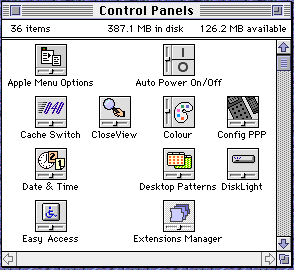
The Control Panels shown in this illustration won't necessarily match those on your machine because I've installed many applications, some of which come with Control Panels of their own. But each Mac owner has a certain core set of Control Panels. These are some of the more useful Control Panels supplied with System 7.5. Earlier versions of the System will have most but not all of those Control Panels, and some of the options may have moved from one Control Panel to another.
Some of the changes you can make in these Control Panels will only come into effect if you Shut Down and Restart the machine - a small warning dialog will tell you if this is the case.
Earlier we saw how adding a folder (or its alias) to the Apple menu let you view deeper layers of folders via sub-menus. Here's where you switch this feature On or Off. The Apple menu lists your most recently-used files and applications - you can use the lower part of this Control Panel to choose how far back it remembers. (the Servers option is for more advanced use.)
Adobe Type Manager is supplied as part of System 7.5. Previously, it had to be bought separately, although many Macintosh applications were (and still are) supplied with it. Including it is Apple's concession to the ubiquity of PostScript fonts (see the System chapter for an explanation of fonts), despite the fact they would dearly love everyone to use their own TrueType font format ATM helps fonts display and print properly.
This control panel lets you choose the highlight colour. When you select text in a word processing document, for example, it will be shown against a solid colour to indicate it's highlighted. If you want a different colour to the standard black highlight, choose it here. The lower part of the control panel lets you change the coloured border of your windows. The standard colour is blue, but you can choose from a whole range via the Pop-up menu.
Your Mac has a built-in clock. Should you ever need to reset the time, this is the control panel you use. You can also switch the menu bar clock on and off from here, as well as cater for your own specific time zone and even British Summer time.
You're not stuck with the plain grey Desktop pattern that your Mac arrives with. Using this control panel you can choose one of 64 colourful designs to brighten up your machine. You use the scroll bar/scroll arrows to cycle through the choices, and the window above the scroll bar shows what the pattern looks like. Click on the Set Desktop Pattern button once you've made your choice.
You'll find out more about Extensions in the chapter on the System, next. Extensions Manager is a control panel that lets you prepare 'sets' of System extensions that load up when you start your Macintosh.
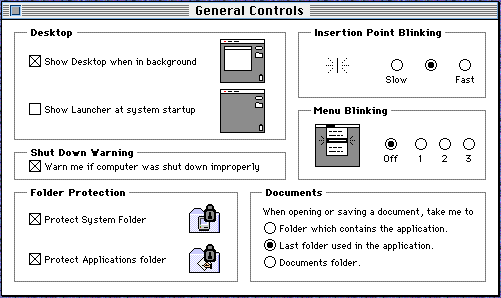
There are many options here which can make a lot of difference to your Mac. When you're working in an application, your Mac's Desktop, including your hard disk and wastebasket icons - and any others you've left out - is visible in the background. If you don't want to see this extra clutter, click the Show Desktop when in background option off.
Below this is an option for showing the Launcher on startup. You may already have seen the Launcher. It's Apple's latest idea for making the Mac easy to use. It's a Desktop window containing buttons which launch your favourite applications with a single click. It's not to everyone's taste, so here's where you can switch it off. Below this is an option for warning you if your Mac was shut down 'improperly'. You always need to use the Shut Down option when you switch off, and if you have small children or inexperienced users using your Macintosh, you might want to leave this feature on because it gives them a gentle reproach when they restart the machine after an 'incorrect' shut-down. Otherwise, switch it off.
In the bottom left are two options for folder protection. if you click these on it means that no-one can make any changes to your System folder and the special Applications folder set aside in System 7.5 for all your programs. If other people are using your Macintosh, or you're worried about doing some damage accidentally, click these on. Otherwise, leave them off.
To the top right you'll see options for changing the blinking speed of the cursor when you're editing text, and the number of times a menu flashes when you make a selection. The first choice is purely cosmetic, but if you want your Mac to be appreciably quicker to use, you'll turn off menu blinking altogether.
Lastly, in the bottom right-hand corner, you'll see a series of options for storing files. When you save a file, you are always given the chance of finding exactly the folder you want to save it in. However, it saves a bit of effort if the right folder comes up automatically. You can get half way there by choosing the right option here. By default you are offered either the folder that contains the application you're using, the last folder you saved anything in with that application or the Documents folder (part of System 7.5, and the 'twin' of the applications folder). It all depends on how you work, but for my money the middle option is by far the most useful.
The Americans (bless 'em) have a slightly different keyboard layout to us Brits (as do many other countries). If you want to make sure that your pound signs come out as Pounds (and not hash symbols), choose the British option here. The only other things to set are the Key Repeat Rate (how fast letters appear if you hold down one of the keys) and the Delay Until Repeat (how long you have to wait after pressing a key before they start repeating).
Earlier on we saw how you could use labels to categorise and organise your documents. This control panel lets you change the standard label names. Just drag the mouse pointer over the text and start typing to change it. You can also change the label colours - simply click on a colour and up pops a big 'colour wheel' which you can use to pick a shade.
This is an excellent control panel which is almost like a miniature application. It displays a map of the world and stores a list of major cities and their locations. Once you've chosen your 'home' city you can use it to find the time anywhere else in the world. You can also add and remove cities from the list. An excellent but often overlooked tool.
Memory
If your Mac is a little short of RAM (and most of us could use more) you'll be making fairly frequent trips to this control panel. The first option, Disk Cache, can usually be left at the default setting - it's a segment of memory kept aside for storing frequently used bits of programming code, and is handled automatically by your Mac. The next option, Modern Memory Manager; is for users of later Macintosh models having trouble running older software. Sometimes, switching this option off can help troublesome software run - otherwise, leave it on. Virtual Memory is becoming increasingly significant. On any Macintosh with a 68030 processor or better, you can use virtual memory to supplement the machine's RAM. With virtual memory switched on, the Mac uses part of its hard disk as 'pretend' RAM. It does get you out of a hole if you don't have enough memory for a certain application (or for running several together), but it does slow the machine down.

But here's a big tip for PowerMac owners. Because of quirks in this machine's operating system, applications designed specifically for the PowerMac often need less RAM if virtual memory is switched on (you only need to set aside as little as 1Mb virtual memory for this to work). Strange, but true. There is a speed penalty, but this is usually more than outweighed by the extra freedom it gives you.
The last option, for creating a RAM disk, is when you don't have a shortage of RAM but you do have a shortage of speed. A RAM disk is a 'pretend' disk drive which is actually held entirely in the machine's RAM. Because transferring information in and out of RAM is dramatically faster than transferring it from disk, this will give you a speed boost. Bear in mind, though, that when you switch off your machine the contents of your RAM disk will be lost forever - so make sure you save them to a 'real' disk first!
Finally, the Use Defaults button returns all the settings to the factory defaults - useful if you get everything hopelessly wrong, or you just want to start again from settings you know will work.
Monitors
This control panel changes the number of colours your screen displays. Some older programs insist you set your Mac to display only 16 colours, for example. You can get a bit of a speed boost by setting your display to reduced colours, or even black and white, but for the most part you can leave it set to display 256 colours or 'Thousands' for the best quality. The rest of this control panel (the Options... and Identify buttons and the lower, main, window) are for people using more than one monitor - which is a pretty specialist area.

Mouse
Does your mouse pointer skate around too quickly? Do you find it hard to double-click quickly enough for it to register? You can control both of these options from this control panel. The Very Slow option for mouse tracking is useful if you're using a drawing program, while a slower double-click speed is often essential for beginners not yet fluent with the Mac mouse.

The British, like other nationalities, have their own chosen way of displaying numbers and currency. You can choose a national preference from the pop-up menu, top right, and add your own preferences using the other options.
PC Exchange is a valuable addition to System 7.5, and much better than the old Apple File Exchange, which did the same job. It lets your Macintosh read PC disks, and via this control panel you can choose the Mac application that opens specific types of files that PCs generate. For more advanced users, this one.
Your Mac emits a warning sound whenever you do something wrong, or try to do something impossible. in fact it has a small repertoire of noises to choose from, and you can control the volume they're played at. If you have access to other sound files, you can add them to the list. You can also use this control panel to record sounds of your own - all current Mac models have sound-recording hardware, and the 5200 and 5300 have microphones built into the monitor (you need an external microphone for other models).
This control panel changes the way items appear in windows. The standard font (Geneva) is very legible at small sizes, and is the ideal choice for most users. If you find it ugly, though, you can change to another font via the pop-up menu and another size via the menu alongside.
The Icons Views affect the way icons are arranged in folder windows. The Always snap to grid option will align them to a fixed but invisible grid on the screen for extra neatness (although you can't pack icons together to make best use of the space). The List Views options control the size of icons displayed in windows when you view by name rather than icon, while the other options control how much information is displayed.
Ouick tip: to speed up the rate at which windows are opened when you double-click on their icons, switch Calculate folder sizes off.
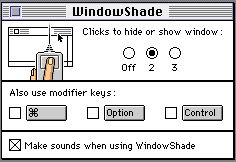
WindowShade is a neat little feature that can keep your Desktop that much neater. If there are windows getting in the way - but you don't want to close them - simply double-click on the title bar to shrink them to just the title bar. You double-click again to expand them back to their previous size. You don't have to double-click - you can set other key/mouse combinations via this control panel.
Expert tips
If you're on a network, open the Apple Menu Options control panel and type a number into the Servers field in the Remember recently used items area. This doesn't record the names of the servers you most recently used - it actually records the folders within those servers that you accessed.
How large a font cache should you set aside in the ATM control panel? Adobe recommend around 50K per font you use regularly, so if you use lots of fonts you'll have to make some tough choices between available memory and font-drawing speed (the font cache works on a first-in, first-out basis).
If you've got £50-60 to spare, get a Kensington Thinking Mouse. They feel and work ten times better than the standard model, and you can program their four buttons to offer amazing things, including speed-switching, programmable short-cuts and custom acceleration.
 G.Mills@compserv.gla.ac.uk