Chapter 7
| About the Macintosh Chapter 7 |
There are a number of options on the Apple menu that lead to built-in accessories and a couple of more important Macintosh controls Here's a guided tour:
This is the first option you see on the Apple menu if you are at the Desktop, and this is the dialog that appears if you select it. It tells you what type of Macintosh you have, which version of the System software you're using, how much memory is built in and how much memory you have in total (which includes any virtual memory you may have set up). To the right is a very important figure: Largest Unused Block. We'll come back to this shortly.
In the bottom part of the window you'll see a list of all the applications currently running, and the amount of memory they are consuming. The System is always running, and basically gobbles up as much memory as it needs to, depending on how many fonts you have, how many Extensions and control panels are installed and other techie details like that.
Other applications, though, don't take as much memory as they need at any one time. Instead, you have to choose the amount of memory to allocate to them. From the illustration above, we can see that of the 4,096K (4Mb) I've allocated to Netscape 1.1, it's currently using only about 10-15%. Earlier on we looked at Info windows. Let's look at the Info window for the ClarisWorks 3.0 application file (remember, you do this by activating the Finder, then selecting the file you want, then choosing Get Info from the File menu or using the keyboard shortcut command-I):

This window gives us a lot of information about the ClarisWorks 3.0 application, but the part we're interested in is down at the bottom in the Memory Requirements segment. The top figure, Suggested size, is set by the manufacturer and is a good guideline to the minimum amount of memory you can practically allocate to the application. The next figure, Minimum size, is set by you. If you already have several applications running when you try to launch an application, you may not have much memory left. If you have less left than the minimum size you specify here, the application won't attempt to load. You can sometimes get away with specifying a minimum lower than the manufacturer's suggested size, but frankly it's not worth it. The Preferred size is the amount of memory the application will take for itself when you launch it, providing that amount of memory is available. To go back to the About this Macintosh window illustrated earlier, we can see that I launched Netscape 1.1 when there was more than 6,000K of memory available, so it reserved its entire quota. If there had been less than 6,000K available, but more than the minimum, it would simply have taken what it could.
So why set a high 'preferred' figure and risk leaving valuable memory unused? As your documents get bigger and more complex (as you work on them, basically), so the application's memory requirements get bigger and bigger. By setting a large 'preferred' size you avoid the risk of the application running out of memory. If it does, nothing really bad happens, it just means it has to start shuffling data to and from the hard disk, instead-of being able to keep it all in memory at once.
Incidentally, note the remark right at the bottom of the Info window. Remember how I mentioned earlier that a quirk in the PowerMac design meant that virtual memory actually reduced application memory requirements? Here's the proof!
Lastly, let's get back to the figure at the top of the About This Macintosh window - Largest Unused Block. When applications take over a segment of memory, it has to be in a single block. When you quit an application, the remaining applications still running don't shuffle up to take up the space - as a result, you get smaller, irregular chunks of memory becoming available, not larger, single chunks. Take a look at this simplified diagram:


In the top example, Word 6 was the first application to be launched, and it has taken 6,000K to leave 12,000K free out of a total of 18,000K. In the second example, though, Word 6 was launched while another application, itself taking up 6,000K, was still running. When you quit that application, and free up its 6,000K of memory, it's split up from the rest, so that even though there's 12,000K of memory free, the largest single block is only 6,000K.
This is called 'memory fragmentation'. If an application tells you there isn't enough memory when you try to launch it - and you know darned well there is - it could be because your memory has become fragmented. Quit all the applications currently running, then launch them all again and you will find that the remaining memory is now in a single block.
Incidentally you can get hard disk fragmentation too, but this is less of a problem and you seldom need to worry about it (unless you're in the habit of keeping your hard disk 99% full).
That just about covers the About this Macintosh... option on the Apple menu. But note that this option changes if you access the Apple menu while you're within an application. Instead, it reads about ClarisWorks... (or whatever the application you're running). When you choose this option it will bring up a title or info screen created by the software publisher:

This is an excellent toy given away with System 7.5 and CD-ROM-equipped Macs. It offers all the controls of a hi-fi CD player, including shuffle, program, repeat and fast forward/reverse modes. You program tracks by dragging from the track list into the playlist. There are numerous options for customising the display, too.
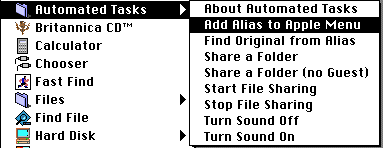
One of the major additions to System 7.5 is the AppleScript programming language (it's been available for some time, but only as an extra). Apple are keen for Mac users and Mac software developers to use AppleScript, so they've included some sample automated tasks to demonstrate its abilities. The most useful (I think) is the Add Alias to Apple Menu script.
(A 'script' is a cross between a program and a list of actions that you could carry out yourself, but you're getting your Mac to do it for you instead.) You can find out more about the AppleScript language in the 'Apple Extras' chapter.
The Macintosh calculator has survived unchanged for practically a decade. Sadly. It offers only the basic arithmetic functions, no memory, no specialist trigonometric, mathematical, financial or scientific functions and no fancy design. But it's useful now and again, nonetheless.
Quick tip: when you've finished your calculation, select Copy from the Edit menu, and the result is copied to the clipboard, ready to be pasted into a letter, a spreadsheet or whatever else you're working on. Oh, and another tip - you can use the number keys on the keyboard (and keypad) instead of trying to click on the buttons with the mouse.
Are you having trouble finding the right character on the keyboard? This happens often if you're trying to find the right symbol from the Dingbats font (in the illustrated example above). Select Key Caps from the Apple menu and you see this window. Choose the font you want to examine from the Key Caps menu and then press the shift, command and option keys individually or in combination until you've seen all the characters that font can produce. (You can cut and paste characters from the sample window into your documents.)
New and improved for System 7.5, Note Pad is a very simple word processor which lets you jot down ideas and notes as they occur to you. There are 8 pages to write on (you can erase text too, of course) and in the latest version you can enlarge the size of the pages by dragging on the resize box, bottom right-hand corner or clicking on the expand box, top right, which will expand the pages to full-screen size.
The old Scrapbook was a place where you could store pictures, either for transporting them from one document to another, or just because you like them. The new version stores pictures, text and sounds, and you can resize it to fill the whole screen if you like.
Stickies are the electronic equivalent of those sticky yellow labels people stick to your monitor screen when you're not at your desk. You can change their font, type size, colour and window size and have them loading automatically on start-up so that they're always there to remind you of the things you haven't done (a bit like being married, really).
Expert tips
You can find dramatically superior versions of the Clipboard, Scrapbook and Note Pad in the public domain/shareware market.
 G.Mills@compserv.gla.ac.uk